When should you convert EML to PST?
EML files are commonly used to store individual email messages. Email programs such as Windows Live Mail, Thunderbird and others can save messages in this format. But managing a large collection of separate EML files in Outlook is inconvenient, because Outlook opens them one at a time.
Converting EML to PST helps in situations such as:
- Moving emails to Outlook: bring saved EML messages into an Outlook mailbox without handling every message separately.
- Combining scattered email files: gather emails from different folders into a single PST file that is easier to manage.
- Keeping an email archive: store important conversations in a format Microsoft Outlook opens.
- Accessing old email data: open saved EML messages in Outlook, even when the original email account no longer exists.
- Sharing an email collection: give someone a single PST file to review in Outlook.
How the online EML to PST converter works
You can convert EML to PST without installing a desktop program. Follow these steps.
Step 1. Select your EML files
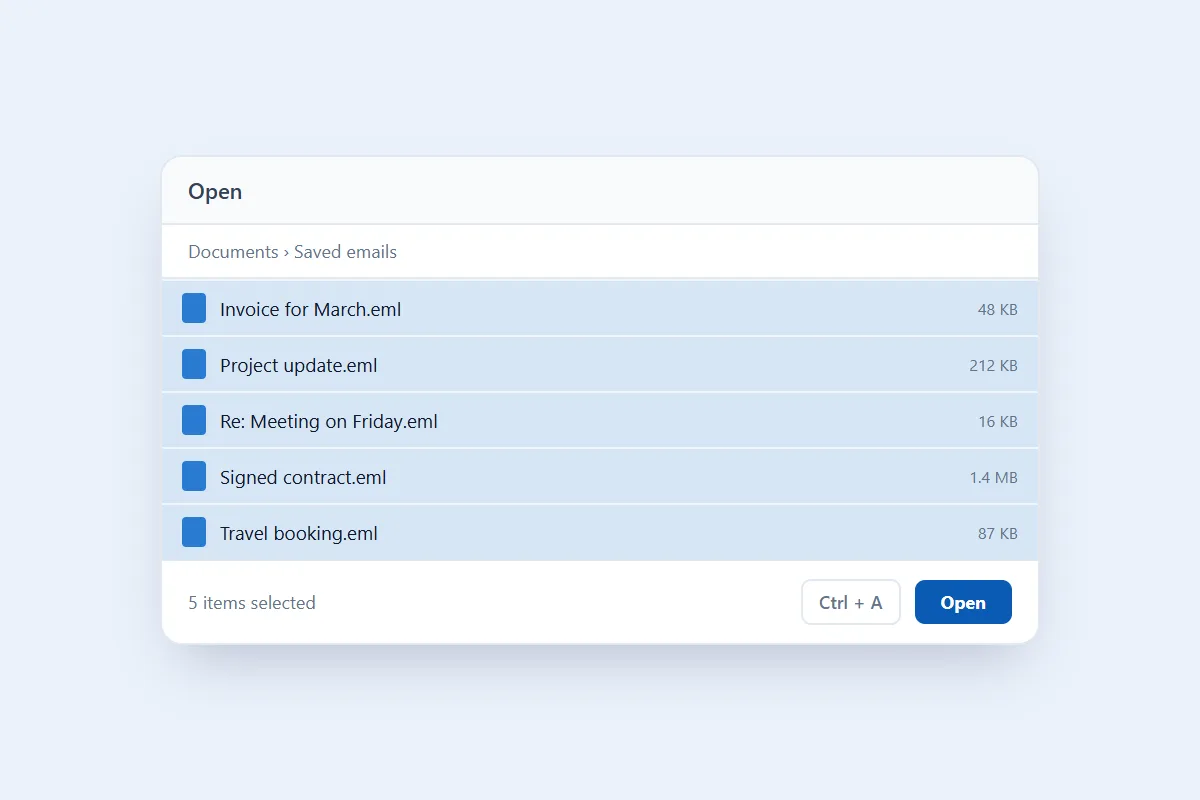
Open the EML to PST converter at the top of this page and click Select EML files. Pick the .eml files you want from your computer. To take every file in a folder, press Ctrl + A (Cmd + A on a Mac) in the file window. You can also drag the files onto the converter.
Step 2. Start the conversion
Click Convert to PST. The converter reads each EML message and writes it into a PST file, counting through the emails as it goes.
Step 3. Download the PST file
When the conversion is complete, click Download PST and save the file somewhere you can easily find it later.
What does the online EML to PST converter keep?
An EML file holds more than the visible message text. It also has the sender, recipients, timestamp, formatting and attachments, and these details matter when you move emails into another program. The converter writes all of them into the PST:
- Email headers: sender, recipients, Cc and subject. Bcc is kept when the EML has it, which is usually only in emails you sent.
- Date and time: the original sent date of each email.
- Message content: the email body with its HTML formatting, or plain text for plain-text emails.
- Attachments: every file attached to the original EML message.
- Embedded images: pictures shown inside the email body stay in place.
- Internet headers: the original message headers, which Outlook shows under File > Properties.
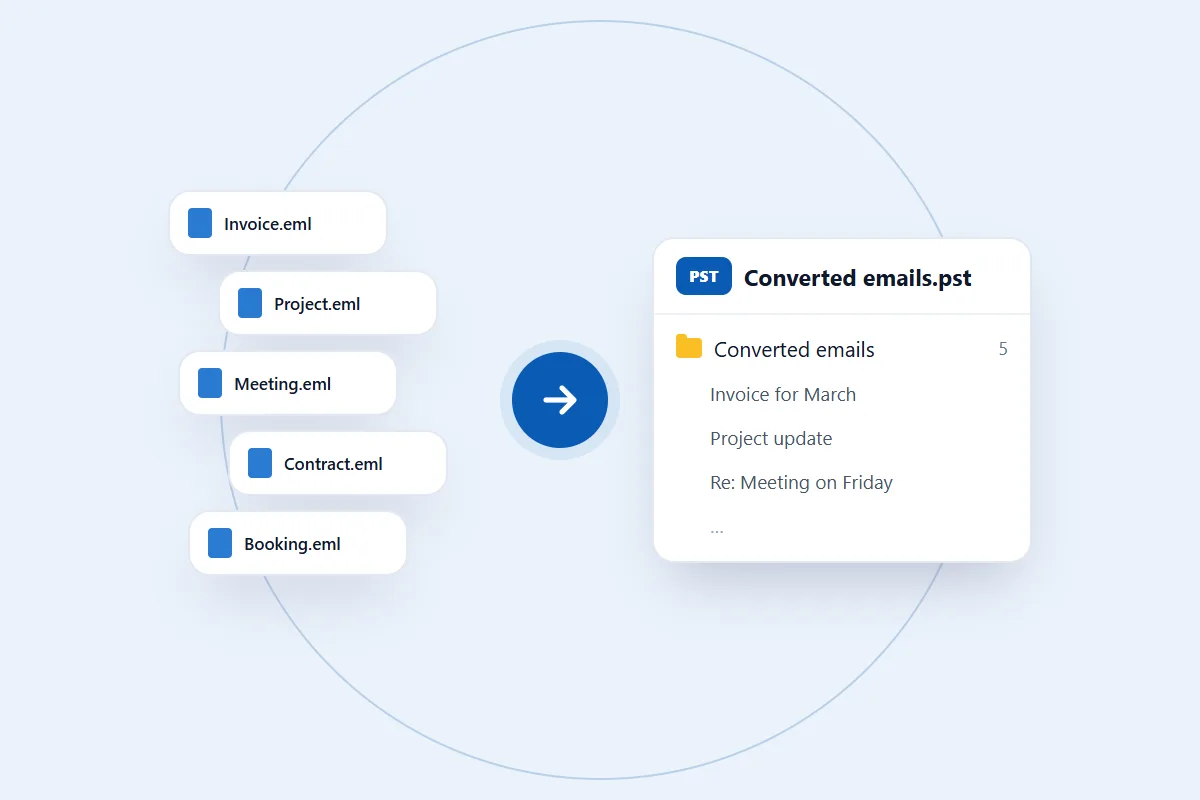
All the emails from one conversion go into a single folder in the PST, called Converted emails. If you convert a single file, the folder is named after it. Your EML files stay unchanged.
How long does it take to convert EML to PST online?
Conversion time depends mainly on how many files you pick and how big they are. A plain-text email takes a moment, while emails with HTML formatting, embedded images or large attachments take a little longer. In our tests 505 EML files converted in about a second, and 2,761 EML files adding up to 236 MB took 12 seconds.
For a smoother conversion:
- Check that the EML files open and aren't damaged.
- Keep the page open until the download button appears.
- Keep enough free space to save the converted PST file.
- Wait for one conversion to finish before starting the next.
How to open the converted PST file in Outlook
After downloading the PST file, you can add it to Outlook without importing each EML message by hand. These steps are for classic Outlook for Windows:
- Open Microsoft Outlook on your computer.
- Click File in the top menu.
- Select Open & Export.
- Choose Open Outlook Data File.
- Browse to the downloaded PST file and select it.
- Click OK to open the file.
The PST file appears in the Outlook folder pane. Expand it to see the folder and the messages. You can read the emails, search for conversations, drag messages into another mailbox or keep the PST as a separate archive. On a Mac, Outlook imports it through File > Import.
Is it safe to use the EML to PST converter?
Your EML files are used for one thing only: building the PST file you download. We don't read your conversations, share their contents or use your messages for anything else. You also don't need to create an account or connect your email account to use the converter.
That means you can convert saved EML files without giving anyone your email password or linking your mailbox. For more about how we handle files and protect your data, read our privacy policy.
EML file compatibility
EML is a widely used email format, supported by many email programs. You may have EML files saved from:
- Mozilla Thunderbird: single messages saved with File > Save As.
- Windows Live Mail: emails exported or stored as EML files.
- Outlook Express: previously saved email messages.
- Windows Mail: messages exported from Windows Vista and later.
- Apple Mail: messages saved as raw message source.
- Other email programs: any program that saves single messages as EML files.
We tested the converter with real EML files and read every PST back to check that nothing went missing:
- 146 EML files of everyday HTML email from many different senders. All 146 emails came through in under half a second.
- 505 EML files taken from a Thunderbird mail folder, with 57 attachments between them. The PST had all 505 emails and all 57 attachments.
- 2,761 EML files adding up to 236 MB, with 1,906 attachments and 20 emails with Cc recipients. Everything came through in 12 seconds in Chrome on a Windows desktop.
The PST is made for Microsoft Outlook. EML files that use unusual encodings or broken MIME structure can still come out slightly different, so if a file gives you trouble, tell us.
Common problems when converting EML files to PST
Sometimes the conversion doesn't work as expected. Here are the common issues and how to fix them.
1. The converter won't take your EML file
If the converter says a file doesn't look like an email, it may be damaged, empty or in another format. Check whether the file opens in a text editor or email program. Emails start with header lines such as From: and Subject:. If the files are in a ZIP archive, extract them first.
2. The conversion gets stuck
A very large set of files or a browser tab that was closed or reloaded can stop the conversion. Wait for it to finish first. If it stays stuck, refresh the page and try again in an up-to-date Chrome, Edge, Firefox or Safari.
3. Attachments are missing in the PST
If an attachment is missing after the conversion, first check whether it is in the original EML file. Open the email in Outlook and look at its attachment bar, then compare it with the original message.
4. The formatting looks different
An email can contain HTML formatting, inline images or fonts that Outlook shows differently from your old email program. Open the original EML in an email program and compare it with the converted message.
5. The PST file won't open in Outlook
The download may be incomplete. Download the PST again and open it with File > Open & Export > Open Outlook Data File. Make sure you pick the file you just downloaded, and use classic Outlook for Windows.
6. Some email details look wrong
If the sender, recipient, subject or date looks wrong or incomplete, check the original EML file first. The source file may have missing or unusual header information. Try converting a readable copy of the original file to compare.
Still having trouble? Contact us and describe what you see. Please don't send private email content. We never need your mail to help.