When you need to convert PST to PDF
PST files store Outlook mailbox data: emails, attachments and folders. Outlook can open them, but reading what's inside usually takes Outlook or another PST viewer. PDF is easier when you want to read or share emails without depending on an email program.
You may need PST to PDF when sharing old business conversations with someone who doesn't use Outlook. Perhaps you have an Outlook backup with important emails you want to open on any device. Or you need to hand over email records for legal, compliance or documentation purposes.
Some people turn a PST into PDFs for long-term archiving. Single PDF documents are easier to print, share and organize than a whole Outlook mailbox, and you can open them without the original email account or an Outlook profile.
How to convert PST to PDF online
Before you start, find the PST file you want to convert. On Windows, Outlook usually keeps PST files in one of these places:
- Outlook data files:
%LOCALAPPDATA%\Microsoft\Outlook(paste it into the File Explorer address bar) - Documents folder:
Documents\Outlook Files - Custom location: the folder you picked when you exported or saved the PST yourself.
If Outlook is still installed, it can show you the file:
- Open Microsoft Outlook.
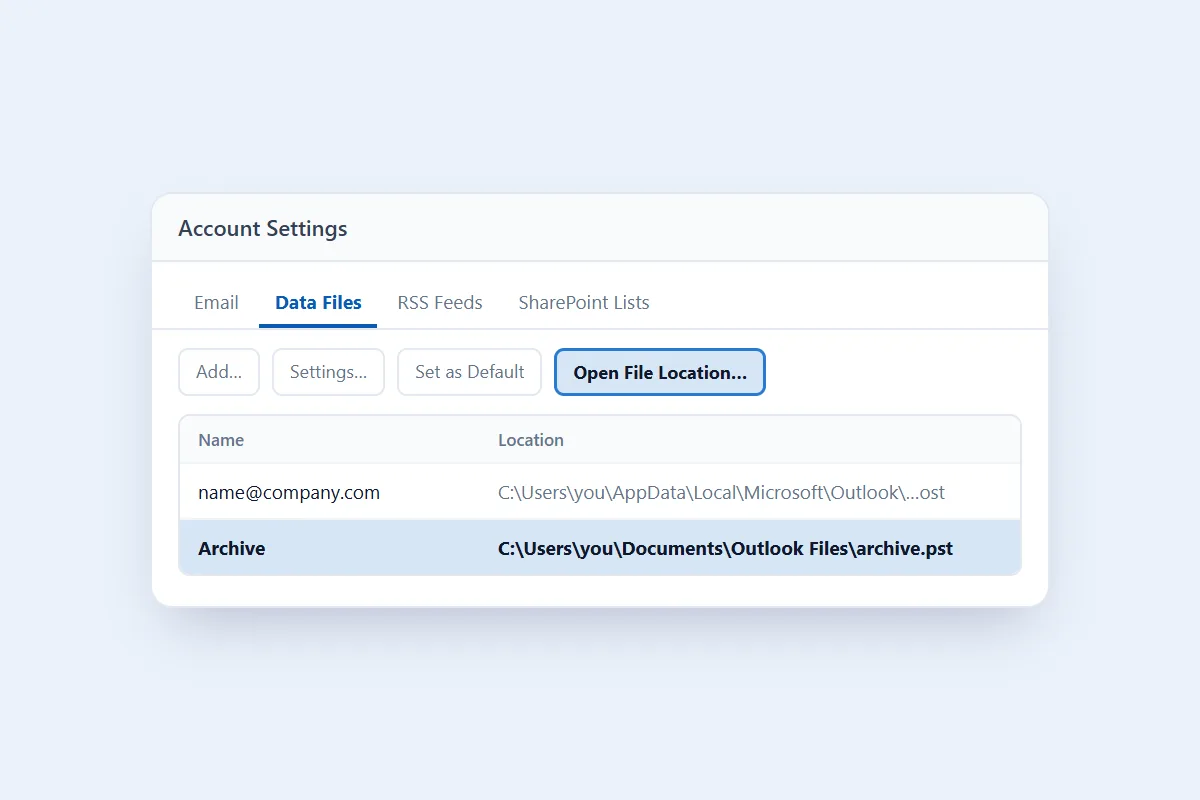
- Go to File > Account Settings > Account Settings.
- Select the Data Files tab.
- Choose the PST file you want to convert.
- Click Open File Location.
Once you have the file, converting it takes three steps:
- Click Select PST file in the converter at the top of this page and pick your PST, or drop it onto the box.
- Click Convert to PDF and wait while every email is converted. A counter shows how far it has got.
- Download the result to your computer.
Close Outlook first if the PST is still connected to it, because Outlook keeps its data files locked while it runs. You don't need to install Outlook or sign in to your email account, and the PDFs open in any PDF reader.
What does the PST to PDF converter keep?
Every email in the PST becomes its own PDF document. Each one shows:
- Sender and recipients: From, To and Cc.
- Date and time: when the email was sent or received.
- Subject: the original subject line, as the PDF's title.
- Message body: the text with its HTML formatting, such as bold text, lists, tables and links.
- Embedded images: pictures that sit inside the email body.
A PST with many emails comes back as one ZIP file. Inside, the PDFs are sorted into the same folders as in Outlook, so Inbox > Clients > 2023 in the PST becomes the folder Inbox/Clients/2023 in the ZIP. Each PDF is numbered and named after its subject, so the files stay in order.
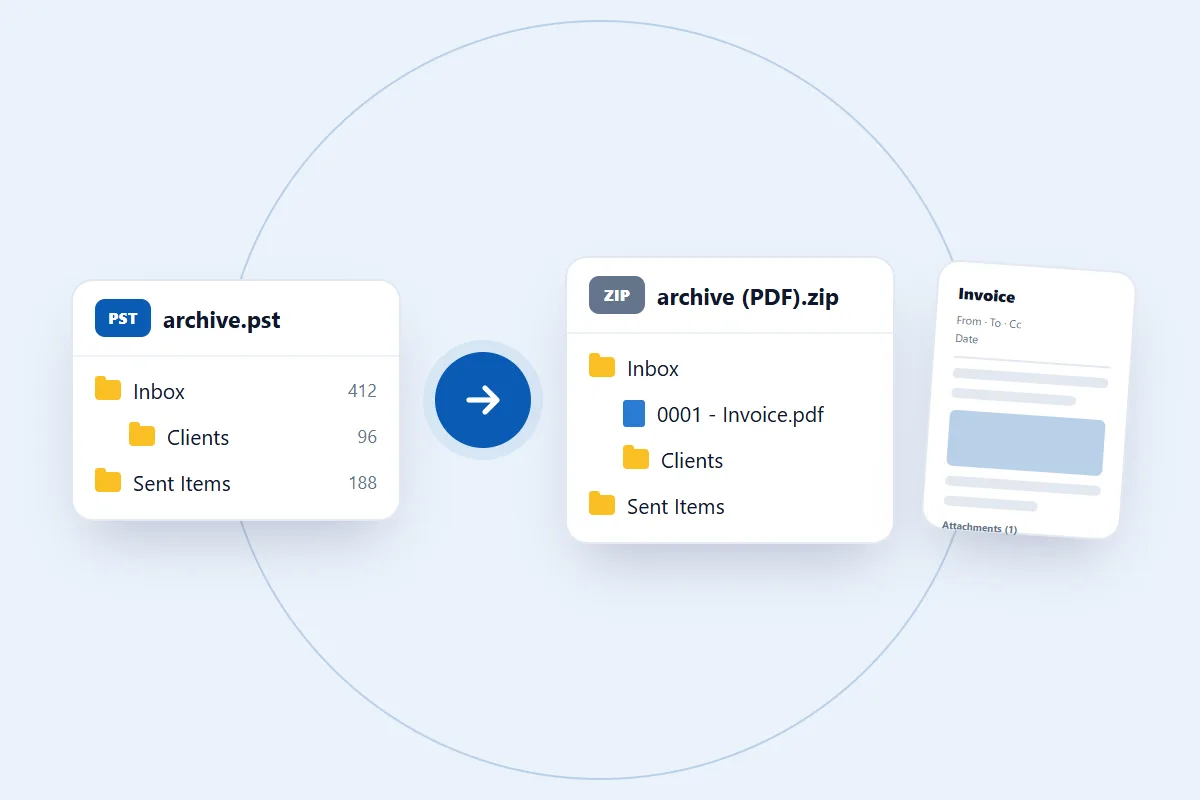
Attachments are listed by name and size at the end of each PDF, so you can see what came with the email. The attached files themselves are not inside the PDF. If you need the attachment files too, convert the PST to EML or PST as well, which keeps them.
The PDFs are made for reading, sharing and printing, not for use as live mailbox items.
A few things worth knowing before you start
- Email messages: the conversion covers the emails stored in the PST file.
- Email formatting: text and HTML formatting carry into the PDF. A very complex layout is kept as clean text instead.
- Attachments: listed by name and size in each PDF, not embedded.
- Folders: every mail folder in the PST is converted, and the ZIP keeps the folder tree.
- No live sync: the PDFs are static copies and won't receive new emails or updates from Outlook.
- Other Outlook data: calendars, contacts, tasks, notes, rules and account settings aren't part of an email-to-PDF conversion.
How long does it take to convert PST to PDF online?
It depends on the size of the PST, the number of emails and how many images they hold. Building a PDF page takes longer than copying an email, so PDF is one of the slower formats. In our tests a PST with 249 emails took 9 seconds, and a 386 MB PST with 5,821 emails took about three and a half minutes.
A PST with a few hundred emails is usually done within a minute. For mailboxes with thousands of emails, use a desktop or laptop rather than a phone and keep the tab open until the download appears.
How to open and use the PDF files
Extract the downloaded ZIP (on Windows, right-click it and choose Extract All), then open any PDF in your usual PDF reader. You don't need Outlook to read your emails any more. Here is what people commonly do with them:
- Read emails: double-click a PDF to open it in your default PDF reader.
- Share them: send single email PDFs to clients or anyone else.
- Print emails: open the PDF and use the print option for a paper copy.
- Archive email records: keep the PDFs on your computer, an external drive or another storage location.
- Organize documents: group related email PDFs into folders by project, client or anything else you need.
Unlike PST files, PDF documents open without Outlook or an email program, which makes them handy when you only need to read or share emails.
Is it safe to use our PST to PDF converter?
PST files can hold personal conversations, financial information, business emails and confidential attachments, so it matters how your data is handled. Your PST is used for one thing: making the PDFs you download. We don't read your emails, share them or use them for anything else, and you never give us your Outlook account password or connect your mailbox.
For the full details on how files are handled and deleted, read our privacy policy. It's worth a look before you convert a PST with sensitive information.
PST file compatibility
Outlook has used two PST formats over the years. Outlook 2002 and earlier wrote ANSI PST files, while Outlook 2003 and later, up to Microsoft 365, write Unicode PST files. We tested the converter with real PST files and checked the PDFs against the original emails.
- Large Unicode PST: a 386 MB PST with 5,821 emails in 19 folders, including 1,577 attachments. Every email came out as a PDF in about three and a half minutes.
- Smaller Unicode PSTs: PSTs with 33, 69 and 249 emails, done in 4 to 9 seconds. We checked that every email became a valid PDF in the right folder.
- Emails with attachments: each PDF lists its attachments by name and size.
- Formatted emails: HTML emails with tables, links and embedded images keep their layout in the PDF.
Older ANSI PST files are supported too, but the only one we had held a calendar rather than email, so we haven't been able to check PDF output from one yet.
Common problems when converting PST to PDF
1. "This looks like a … file, not a PST"
You may have picked a file that isn't a PST, has the wrong extension or is damaged. Make sure you selected the PST itself, not an OST, a ZIP or another Outlook file. If Outlook can't open the PST either, repair it with Microsoft's Inbox Repair Tool (SCANPST.EXE) and convert it again. An OST file has its own OST to PST converter.
2. Emails are missing after the conversion
If some emails aren't in the PDFs, the PST may not contain them, or some items may be damaged. Open the PST in Outlook and check whether the missing emails are there. Meeting requests, read receipts and other non-email items are left out on purpose, and the converter tells you how many.
3. Email formatting looks different in the PDF
Outlook emails can contain HTML layouts, tables, special fonts and embedded images. Some of that looks different in a PDF, because a PDF has fixed pages. Compare the PDF with the email in Outlook. Pictures that were loaded from the internet rather than embedded in the email don't appear, and a layout too complex for a page is kept as clean text.
4. Attachments are missing from the PDF
A PDF doesn't carry the attached files, only their names and sizes at the end of each email. To keep the actual attachments, convert the same PST to EML or PST as well.
5. The conversion stops unexpectedly
A browser tab that was closed or reloaded, a device running out of memory or damaged PST data can stop the conversion. Reload the page and try again in an up-to-date Chrome, Edge, Firefox or Safari, ideally on a desktop or laptop.
Still facing an issue? Contact us and explain what happened. Please don't send confidential mailbox data by ordinary email. We never need your mail to help.