When you need to convert MBOX to CSV online
An MBOX file stores many emails in one mailbox, which makes them hard to review or count. CSV (comma-separated values) stores information in rows and columns, so MBOX to CSV conversion lets you sort, filter and organize your mail in a spreadsheet. The best MBOX to CSV converter online for this job gives you every email as its own row, with columns you can use straight away.
- Analyze email records: view email information in rows and columns.
- Organize mailbox data: sort emails by sender, recipient, subject or date.
- Create email reports: prepare structured records for reporting and documentation.
- Work with Excel: open email data in Microsoft Excel or Google Sheets.
- Keep records: hold on to a spreadsheet-friendly copy of important mailbox information.
How to convert MBOX to CSV online
Step 1. Select your MBOX file
Click Select MBOX file at the top of this page, or drop the file onto the box. Pick the mailbox file itself, not a ZIP archive or an index file.
Step 2. Start the conversion
Click Convert to CSV. This MBOX to CSV converter online counts through your emails as it goes. Keep the tab open until it finishes.
Step 3. Download the CSV file
Click Download CSV. You get one CSV file, however many emails the mailbox holds.
Where can you find your MBOX file?
The location depends on the email program or service it came from.

- Thunderbird: go to Help > Troubleshooting Information, click Open Folder next to Profile Folder, then open Mail or ImapMail. Pick the mailbox file, which may have no extension, not the
.msffile next to it. - Google Takeout: extract the downloaded ZIP, open Takeout > Mail and pick the
.mboxfile. - Apple Mail: find the exported
.mboxpackage, right-click it, choose Show Package Contents and pick the file namedmboxinside.
What goes into the CSV file?
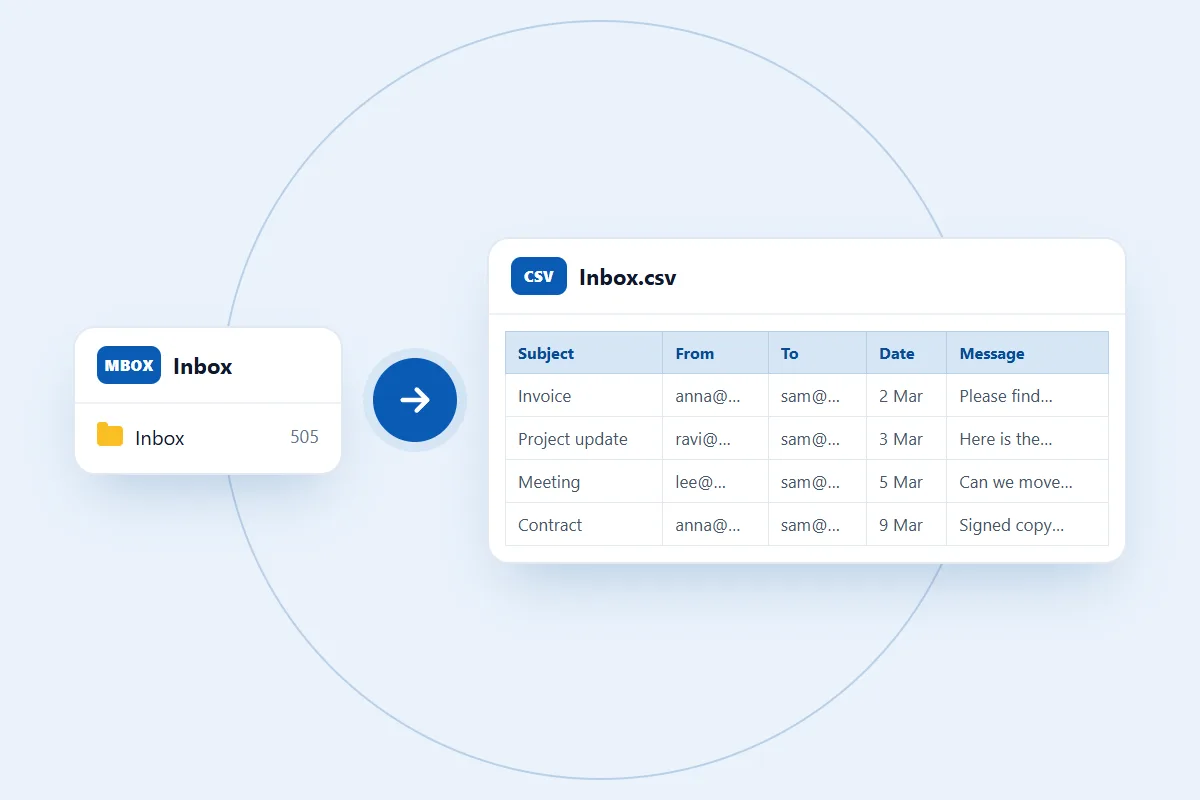
A CSV is a spreadsheet format, so each email becomes one row and its details fill these nine columns:
- Folder: the mail folder. This stays empty for an MBOX, because an MBOX file holds a single folder.
- Subject: the subject line.
- From, To and Cc: the names and email addresses. Bcc isn't exported.
- Date: the date and time from the message, shown in UTC.
- Attachments and Attachment count: the file names and how many there are. Pictures shown inside the email body aren't listed.
- Message: the full message as plain text. Links appear as text with their address in brackets.
Things to know before you convert
- The maximum MBOX file size is 100 MB, and you convert one file at a time.
- Thunderbird keeps each mail folder in its own file, so convert each folder you want separately.
- CSV holds text. Email formatting, pictures and attached files don't carry over, so keep your MBOX as a backup.
- Excel can show up to 32,767 characters in one cell, so it may cut off a very long email in the Message column.
- Contacts, calendars, tasks and account settings aren't stored in an MBOX file, so they aren't in the CSV.
How long does it take to convert MBOX to CSV online?
It depends on how many emails the file holds. CSV is one of the quickest formats, because it only needs the text. In our tests an 11 MB Thunderbird folder with 505 emails took under a second.
How to open the CSV file
In Microsoft Excel
- Open Excel and select File > Open > Browse.
- Go to the downloaded CSV file, select it and click Open.
In Google Sheets
- Create a new spreadsheet and select File > Import.
- Choose the downloaded CSV file and click Import data.
You can then sort, filter and review your emails. Text in other languages should display correctly, because the file is saved in UTF-8 with a marker that tells Excel so.
Is it safe to convert MBOX to CSV online?
Your MBOX file is used for one thing only: making the CSV you download. We don't read your emails, share them or use them for anything else. You don't need to give us your email password or access to your mailbox. Read our privacy policy for the details.
What we tested
We tested this online MBOX to CSV converter with real files and opened the results in Microsoft Excel.
- An 11 MB Thunderbird mail folder with 505 emails. Excel opened the CSV with 505 rows and every value in its own column.
- A test mailbox with commas, quotation marks and line breaks in its subjects and message text. Everything stayed in the right column.
Gmail Takeout and Apple Mail exports use the same standard MBOX layout, but we haven't tested a file from either yet. We haven't tested the import into Google Sheets yet either.
What to check after MBOX to CSV conversion
- Email count: the number of rows below the header should match the number of emails.
- Sender and recipients: check that the email addresses look right.
- Subject and date: make sure they are present and readable.
- Message text: open a few long emails and check that the text is complete.
- Special characters: look at names and messages in other languages.
What makes the best MBOX to CSV converter online?
Convert a small mailbox first and check these points before you rely on any tool:
- Columns: sender, recipients, subject and date should each sit in their own column.
- Message text: find out whether you get the whole email or only its details. Ours exports the whole message as text.
- File size: check the limit against your file. Ours takes MBOX files up to 100 MB.
- Passwords: a saved MBOX doesn't need your email password, so be careful with any tool that asks for it.
Common problems
1. The converter won't take your file
Check that you selected the MBOX file itself and that it is 100 MB or smaller. Extract a Google Takeout ZIP first, and from Thunderbird pick the file with no extension, not the .msf file.
2. Columns look shifted
Open the file through Excel's File > Open rather than pasting its text. If your spreadsheet program asks for a separator, choose comma.
3. The conversion doesn't finish
Damaged mailbox data, or closing or reloading the tab, can stop it. Try again in an up-to-date Chrome, Edge, Firefox or Safari. Still stuck? Contact us and describe what you see. Please don't send private email content.