When you need to convert OST to MBOX online
Outlook creates OST files to keep a local copy of a mailbox, such as a Microsoft 365, Exchange or Outlook.com account. The file is tied to the Outlook setup that created it. Programs such as Thunderbird and Apple Mail support MBOX, but they can't open an OST.
An OST to MBOX converter online bridges that gap. You may need one when you switch from Outlook to Thunderbird, want older Outlook emails in another program, or want a separate copy of a mailbox. The best OST to MBOX converter online for you is one that keeps your emails and attachments together, folder by folder.
Where to find your Outlook OST file
Before OST to MBOX conversion, find the file. It is usually in this folder on Windows:
C:\Users\your-name\AppData\Local\Microsoft\Outlook
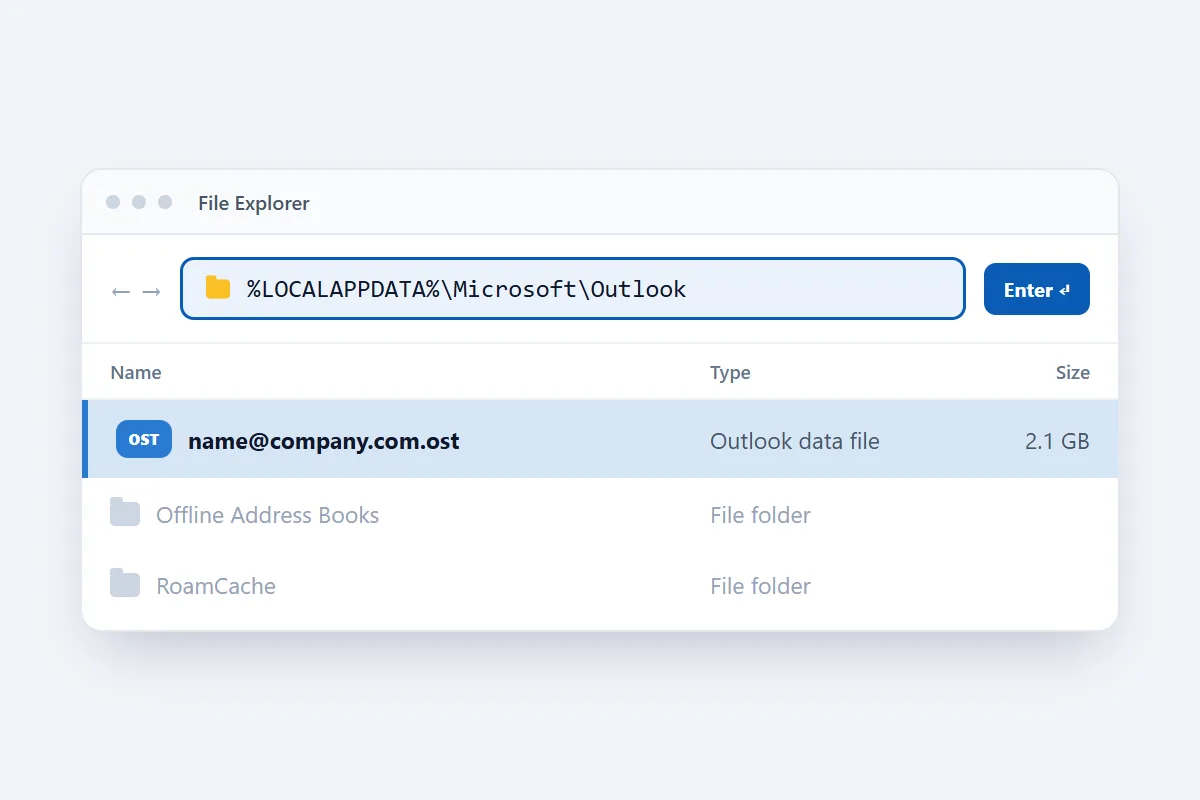
You can also find it through classic Outlook:
- Go to File > Account Settings > Account Settings.
- Select the Data Files tab and choose the OST file for your account.
- Click Open File Location.
No longer have the Outlook profile? Check the same folder on the old computer or backup drive. Close Outlook first, because it locks its OST while running. The file must be 100 MB or smaller.
How the online OST to MBOX converter works
- Click Select OST file at the top of this page and pick your file, or drop it onto the box.
- Click Convert to MBOX and wait while it counts through your emails.
- Download the result.
- If you got a ZIP file, extract it to reach the MBOX files.
- Import the files into an email program that supports MBOX.
You convert one OST file at a time. When one is done, you can select the next.
How long does OST to MBOX conversion take?
It depends on the size of the OST and the amount of email in it. In our tests a 2 MB OST with 29 emails took a fraction of a second, and a 252 MB OST with 2,761 emails, well past the 100 MB limit, took about 19 seconds. Keep the tab open until the download button appears.
What does the converted MBOX contain?
An OST can hold emails, contacts, calendar entries, tasks and other Outlook items. MBOX stores email only, so the result contains your emails, each with:
- Email content: the message body with its text and HTML formatting.
- Message details: sender, recipients including Bcc when present, subject, date and Message-ID.
- Attachments: files attached to the original email. An email attached to another email arrives as a .eml attachment.
- Inline images: pictures shown inside the email body.
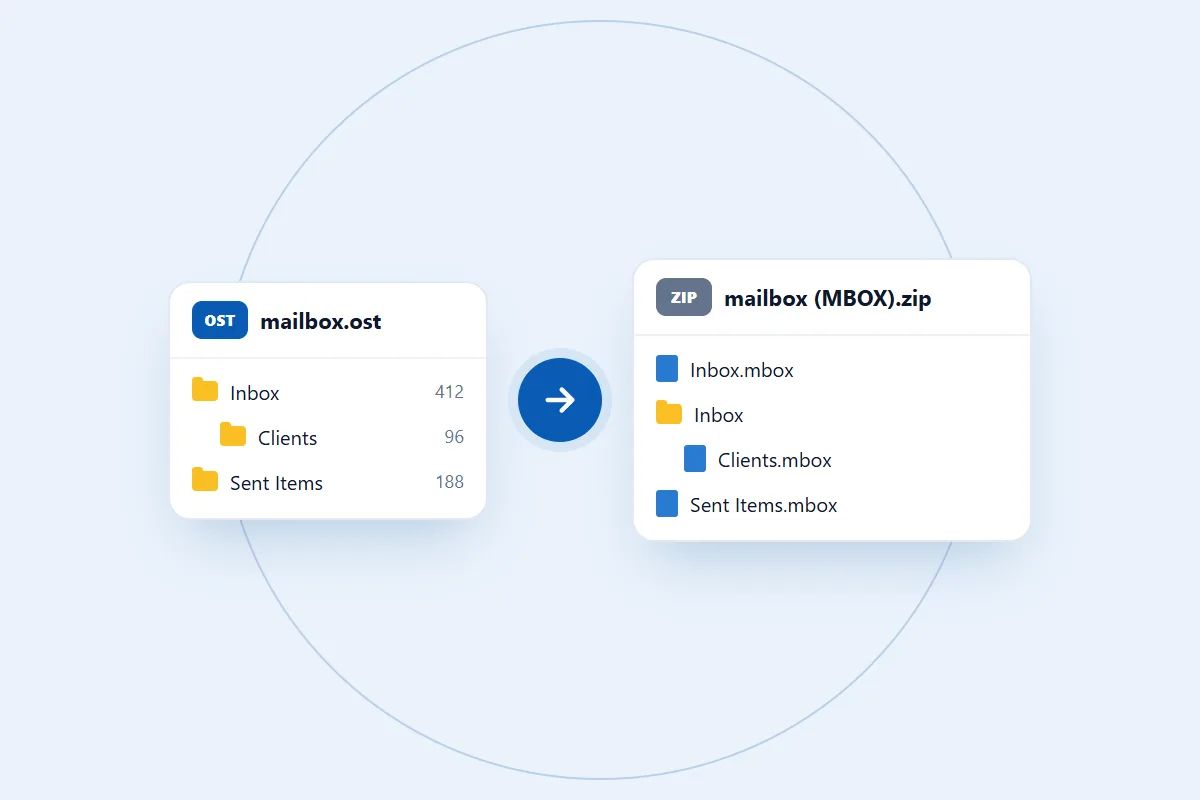
MBOX holds one mail folder per file, so you get one file for each folder in the OST. A mailbox with several folders comes back as one ZIP that keeps the folder tree, for example Inbox.mbox and Inbox/Clients.mbox. If all the email sits in one folder, you get a single .mbox file.
It isn't a complete backup of the OST. Contacts, calendars, tasks, appointments, meeting requests and account settings are left out, and read or unread status and the full original internet headers don't carry over. Need the mail in Outlook instead? Use the OST to PST converter.
Is my email private when I convert OST to MBOX online?
Your OST file is used for one thing only: making the MBOX files you download. We don't read your emails, share them or use them for anything else. You don't connect your Outlook account or give us your password. Read our privacy policy for the details.
What we tested
We tested with real OST files and read every MBOX back with two separate MBOX readers, to check that nothing went missing.
- A 2 MB OST with 29 emails in 2 folders, which gave 2 MBOX files holding all 29 emails.
- A 252 MB OST, well past the 100 MB limit, with 2,761 emails and 1,906 attachments. All of them came through.
We haven't tried importing the files into Thunderbird or Apple Mail yet. Always look through the mailbox in your email program before relying on it as your only copy.
What to look for in the best OST to MBOX converter online
- File size: check the limit against your OST. Ours takes files up to 100 MB.
- Folders: find out whether your mail stays sorted into its folders.
- Email content: open a few messages afterwards, including ones with formatting and attachments.
- Privacy: a saved OST doesn't need your Outlook password, so be careful with any tool that asks for it.
Common problems when you convert OST to MBOX online
1. You can't find the OST file
Open File > Account Settings > Account Settings > Data Files in classic Outlook and click Open File Location.
2. The OST file is over 100 MB
The converter takes OST files up to 100 MB. Check the size in File Explorer before you select the file.
3. Formatting or attachments look different
Email programs display messages in their own way. Compare the message with the original in Outlook, and check that the attachment was there to begin with.
4. The conversion stops before it finishes
Closing or reloading the tab, or a problem with the OST itself, can stop it. Close Outlook, keep the tab open and try again with a copy of the file. Still facing an issue? Contact us and describe the error message. Please don't send private email content.