Why convert MBOX to EML online?
MBOX is a mailbox format used by programs such as Mozilla Thunderbird and Apple Mail. It stores many emails together in one file, while EML saves each email as its own file. That makes single messages easy to manage, share and move. The best MBOX to EML converter online for you is one that saves every email separately and leaves nothing behind.
MBOX to EML conversion is useful in several situations:
- Extracting single emails: separate the messages in one MBOX file into individual files.
- Moving emails between programs: bring messages into email programs that support EML.
- Keeping separate backups: save important messages on their own, outside one large mailbox.
- Sharing messages: send one email to someone without sharing the whole archive.
How to convert MBOX to EML online
You can convert MBOX to EML online without Thunderbird or any other email program. Follow these steps:
- Open the online MBOX to EML converter at the top of this page.
- Click Select MBOX file and pick the file you want to convert, or drop it onto the box.
- Click Convert to EML.
- Wait while the emails are saved. A counter shows how far it has got.
- Download the result to your computer.
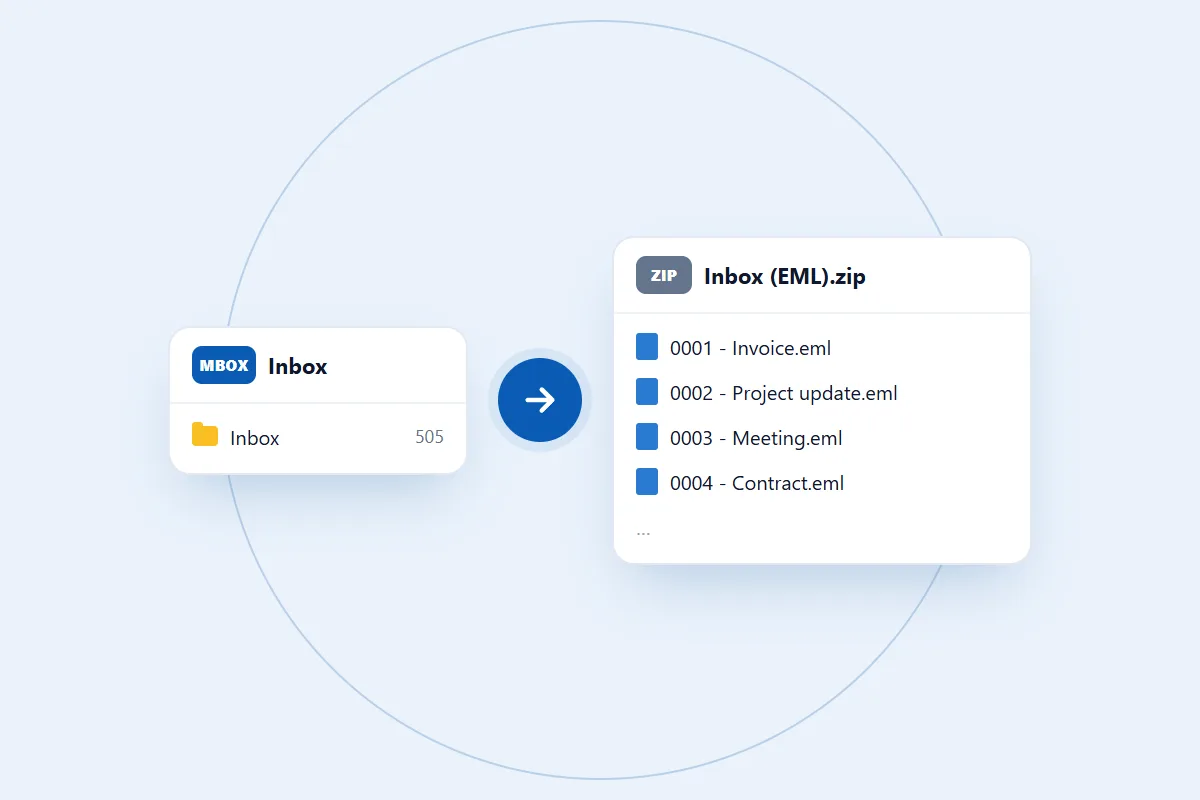
An MBOX with many emails comes back as one ZIP file, so extract it to reach the EML files. An MBOX with a single email comes back as one EML file.
Where can you find your MBOX file?
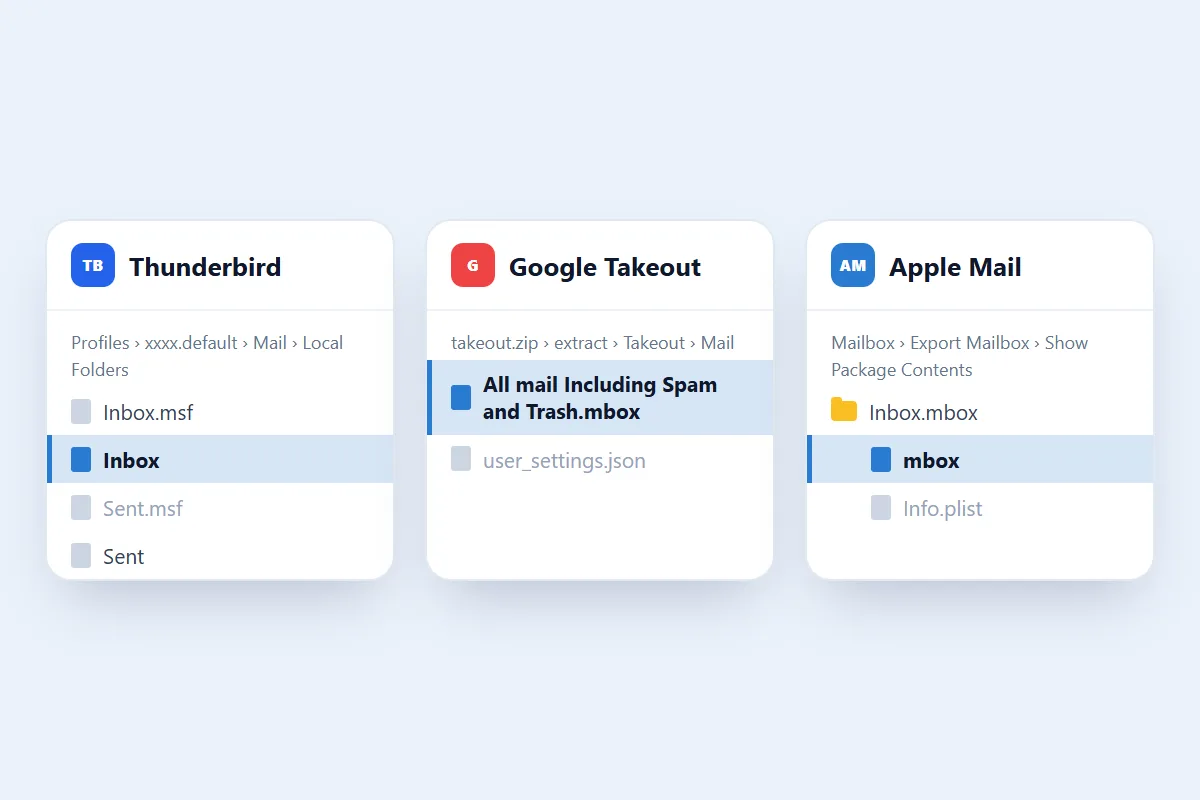
- Thunderbird: open the profile folder, then the Mail or ImapMail folder. Pick the mailbox file, such as
InboxorSent, not the.msffile next to it. - Google Takeout: extract the downloaded ZIP and open Takeout > Mail. The file is usually called
All mail Including Spam and Trash.mbox. - Apple Mail: export the mailbox with Mailbox > Export Mailbox, right-click the
.mboxpackage, choose Show Package Contents and pick the file namedmboxinside.
What happens to your emails during MBOX to EML conversion?
Each EML file is an exact copy of that message as it was stored in the MBOX, so nothing inside it gets rewritten. It keeps everything the original message had:
- Sender and recipients: From, To and Cc, plus Bcc when the message has it.
- Subject and date: the original subject line and date.
- Email body: the text and HTML of the message, with its links, lists and tables.
- Attachments: every file attached to the message.
- Embedded images: pictures inside the email body.
- Internet headers: all the original message headers.
An MBOX with 500 emails gives you 500 EML files, each numbered and named after its subject so they stay in order. To move a whole mailbox into Microsoft Outlook, use the MBOX to PST converter instead.
MBOX file size and number of files
An MBOX file can be up to 100 MB, and the converter tells you straight away if yours is bigger. You convert one file at a time. Thunderbird keeps each mail folder in its own file, so to convert Inbox, Sent and Drafts you select each file in turn. Check that you have enough free space before you extract the ZIP.
How long does it take to convert MBOX to EML online?
It depends on the size of the MBOX and the number of emails. EML is one of the quickest formats, because each message is copied rather than rebuilt. In our tests an 11 MB Thunderbird folder with 505 emails took about a second. Keep the tab open until the download button appears.
How to open the EML files
- Right-click the downloaded ZIP and choose Extract All on Windows.
- Choose a folder for the extracted files and open it.
- Double-click any EML file to open it in your email program.
Keep your original MBOX file as well. You may need it later to convert the whole mailbox into another format.
Are my emails safe with this converter?
Your MBOX file can hold personal conversations, business emails and confidential attachments. It is used for one thing only: making the EML files you download. We don't read your emails, share them or use them for anything else, and you never give us your email password. Read our privacy policy for the details.
What we tested
We tested this online MBOX to EML converter with real MBOX files and read every EML file back.
- An 11 MB Thunderbird mail folder with 505 emails, which gave 505 EML files. All of them read back, along with the 57 pictures embedded in them.
- A test mailbox with Cc and Bcc recipients, custom headers, a picture in the body and an attached file. Each EML file matched its original message exactly.
Gmail Takeout and Apple Mail exports use the same standard MBOX layout, but we haven't tested a file from either yet.
What to check after converting
- Email count: compare the number of EML files with the number of messages in the mailbox.
- Sender and recipients: open a few files and check them.
- Attachments: open emails that have attachments and check that the files are there.
- Formatting: compare emails that have tables and pictures with the originals.
What makes the best MBOX to EML converter online?
Try a small MBOX first and open a few EML files before you convert a whole mailbox. Check these points:
- Separate files: every email should be saved on its own.
- Email details: the sender, recipients, subject, date and message should all be there.
- Attachments: each one should stay with its email.
- File size: check the limit against your file. Ours takes MBOX files up to 100 MB.
- Passwords: a saved MBOX doesn't need your email password, so be careful with any tool that asks for it.
Common problems when you convert MBOX to EML online
1. The converter doesn't accept your MBOX file
Check that you selected the mailbox file and that it is 100 MB or smaller. Extract a Google Takeout ZIP first, and from Thunderbird pick the file with no extension, not the .msf file.
2. Some emails are missing
The mailbox may not hold every message you expected, or some messages may be damaged. Open the MBOX in an email program and compare the count.
3. Attachments are missing
Attachments stay inside their EML files, not next to them. Open the file in an email program and look at its attachment section.
4. The conversion doesn't complete
Closing or reloading the tab, damaged data or low device memory can stop it. Try again in an up-to-date Chrome, Edge, Firefox or Safari, ideally on a desktop or laptop.
5. EML files don't open correctly
Make sure you open the .eml file rather than the ZIP, in a program that supports EML. Still having trouble? Contact us and describe the problem. We don't need your private emails to help.